
How to Use QRoperty
What Can You Do with QRoperty?
QRoperty connects every completed job to the history of the correct property or unit.
One QR code gives you two options:
Option 1: Submit Completed Work
Select “Submit Completed Work” to document maintenance, repairs, and other completed services.
Option 2: Review the Property History
Select “View Completed Work by Apartment” to request the recorded information by text message.

You can also review the photos attached to completed work records.
Option 1
Submit Completed Work

Step 1:
Scan the QR code
Open your phone’s camera and scan the code assigned to the property or unit.

Step 2:
Select the first option
Tap “Submit Completed Work.”

Step 3:
Enter the password
Use the authorized password to open the work submission form.

Step 4:
Identify the unit
Select the correct building and enter the exact apartment or unit number.

Step 5:
Complete the form
Describe the work performed, enter the service date, and provide your full name.

Step 6:
Attach photos and submit
Add clear photos of the completed work, review the information, and tap “Submit.”

Every submission becomes part of the unit’s ongoing history.
Option 2
Review Completed Work
Step 1:
Scan the QR code
Open your phone’s camera and scan the code assigned to the property or unit.

Step 2:
Select the second option
Tap “View Completed Work by Apartment.”

Step 3:
Enter the unit information
Select the building and type the exact apartment or unit number.

Step 4:
Provide your contact information
Enter a mobile number that can receive text messages and provide your full name.

Step 5:
Submit your request
Review the information and tap “Submit.”

Step 6:
Check your text messages
The requested information will be sent by SMS. You will be able to review the available unit history, completed work records, and attached photos.
Every submission becomes part of the unit’s ongoing history.
Accurate Information Matters
To retrieve the correct history, enter the apartment or unit number exactly as it appears in the system.
Before You Submit
Select the correct building.
Include all applicable numbers, letters, and hyphens.
Check for typing errors or extra spaces.
Use a phone number that can receive SMS messages.
Attach clear photos related to the completed work.
Review the information before tapping “Submit.”

What happens when the information cannot be found?
Check the building, unit number, and phone number you entered. Correct any errors and submit the request again.
Support
Need help using QRoperty?

For assistance, call us at (407) 723-6303 or email us at [email protected]
One Scan. The Full Work History.
Document completed work, attach photos, and access each unit’s work history with a simple QR scan.
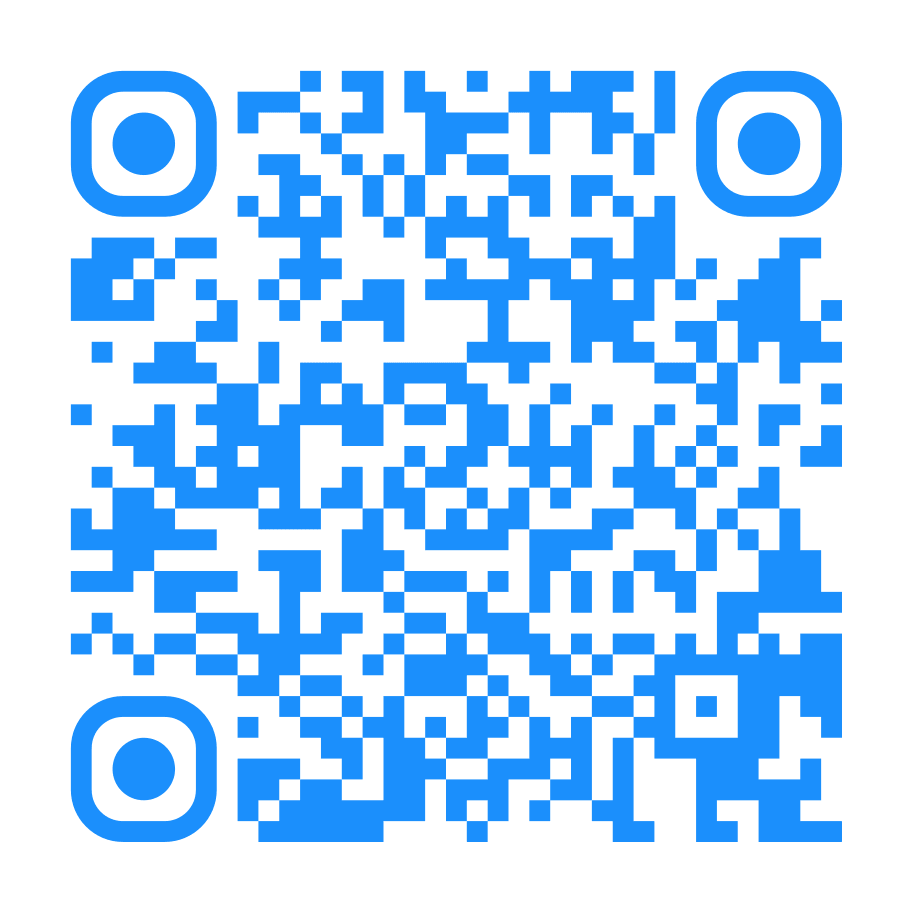
Try QRoperty
Scan the QR code or open the demonstration directly from your device.
Download Our Brochure and Guide
Modernizing property maintenance and real estate management with high-precision utility and instant information access.
Contact Us
[email protected]
(407) 723 6303
11023 Front St 106, Orlando, FL
© 2026 QRoperty. All rights reserved. Privacy Policy. Terms and Conditions. Imagined by GetIDX.com